
How to Use PTZ Camera Presets for Better Coverage
[yasr_overall_rating]
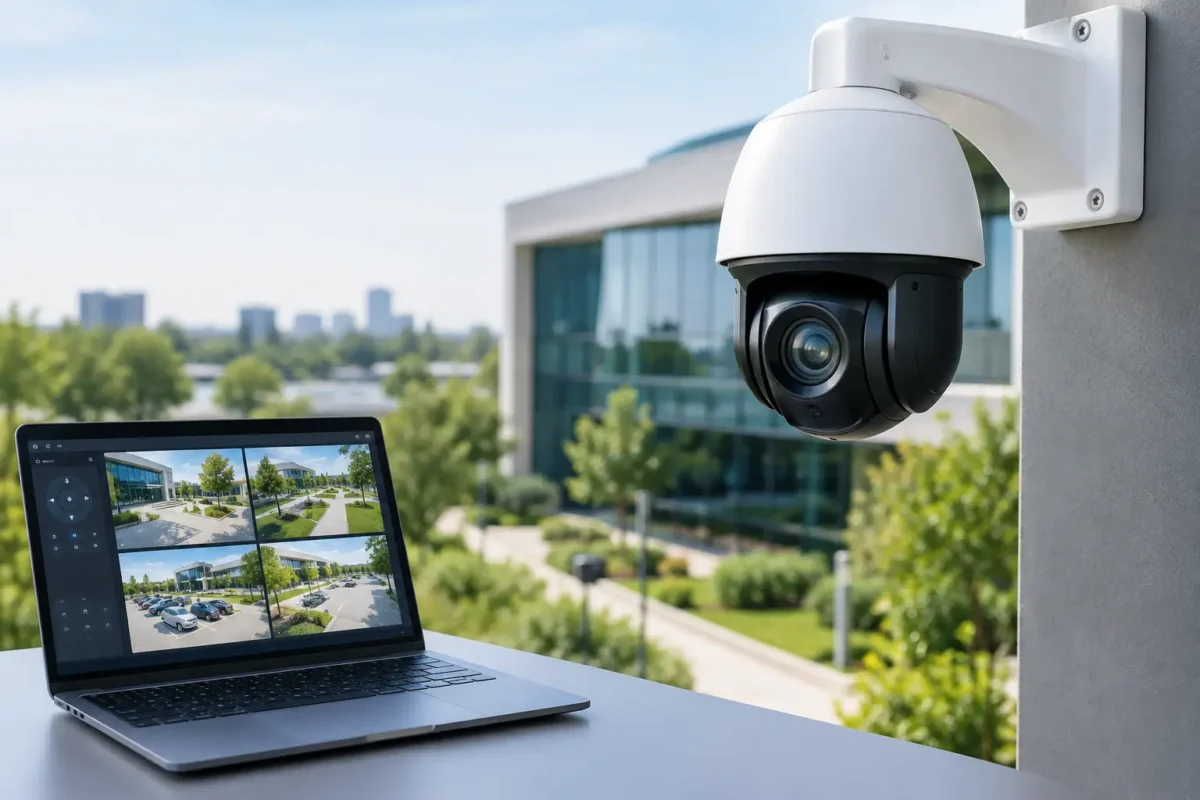
A PTZ camera can cover a wide area, but its value depends on where it looks when activity occurs. Knowing how to use PTZ camera presets turns a movable camera into a repeatable part of your security operation – one that can move to a gate, cash wrap, loading zone, or parking-lot entrance with a single command.
For businesses managing theft, after-hours trespassing, customer disputes, or job-site access, presets reduce the delay and guesswork of manual camera control. They also help operators capture usable evidence instead of losing critical seconds while trying to aim the camera.
What PTZ Camera Presets Do
PTZ stands for pan, tilt, and zoom. A PTZ camera can rotate horizontally, move vertically, and zoom in on a subject or area. A preset stores one exact camera position: its pan angle, tilt angle, and zoom level. When an authorized user selects that preset, the camera returns to the saved view.
A preset is not simply a direction such as “front door.” It is a defined, repeatable view. For example, a parking-lot preset may frame the vehicle entrance wide enough to show the lane, while a second preset zooms toward the payment kiosk or pedestrian gate. Both views serve different security purposes.
Most business-grade PTZ cameras support dozens or hundreds of presets, depending on the model and recorder. More presets are not always better. The goal is to create a short, practical set of views that supports daily monitoring and incident response.
Plan Presets Around Real Security Events
Before opening the camera menu, walk the property and identify where incidents are most likely to occur. This is where a professional system design makes a difference. The right preset plan is based on operations, lighting, traffic flow, and the details you need to identify people or vehicles.
A jewelry store may need preset views of the front entrance, display cases, transaction area, rear delivery door, and sidewalk approach. A daycare may prioritize every pickup entrance, playground gate, perimeter access point, and visitor parking area. A construction site may focus on equipment storage, material staging, trailer doors, and vehicle entry points.
Think in terms of incident questions: Who entered? Which direction did they travel? What vehicle arrived? Where did an employee or visitor go next? Fixed cameras should cover areas that need continuous recording, while PTZ presets provide closer inspection and flexible oversight of areas where activity changes.
A single PTZ should not be expected to replace several fixed cameras. When the camera moves to one preset, it is no longer watching the previous location. For high-risk points such as a cash register, main entry, or a restricted door, continuous coverage from a fixed camera is usually the better choice.
How to Use PTZ Camera Presets Step by Step
1. Set the camera’s home position
Start by deciding where the PTZ should point when no one is actively controlling it. This is commonly called the home position. For a retail location, it may be the front entrance and approach. For a parking facility, it may be the vehicle gate. At a job site, it could be the equipment yard.
Choose a home view that provides the best overall awareness, not necessarily the closest image. If your camera or recorder supports an idle timeout, configure it so the PTZ returns home after a set period without manual input. This prevents the camera from being left pointed at an unimportant area after an operator checks an event.
2. Move, frame, and zoom each critical view
Use the live-view controls in the camera web interface, NVR, VMS, or mobile application. Pan and tilt the camera until the target area is centered. Then adjust zoom carefully.
Too much zoom is a common mistake. A tightly zoomed image may give you a sharper face or license plate, but it can lose the path a person took, the vehicle they exited, or another person nearby. Start with the level of detail required for the preset’s job. A gate overview needs context. A license plate lane needs closer framing and should be supported by properly selected LPR equipment when dependable plate capture is required.
Check the view in day and night conditions. Reflections from glass, headlights, shadows, infrared glare, and outdoor lighting can change a usable daytime preset into a poor nighttime image.
3. Save and name the preset clearly
Once the view is framed, select the option to add or save a preset. The wording varies by manufacturer, but the process is generally the same: choose a preset number, enter a name, and save the camera position.
Names should tell an employee exactly where the camera will move. Use labels such as “Front Entry Wide,” “Rear Door Close,” “North Gate,” or “Loading Dock Bay 2.” Avoid vague labels like “Preset 4” or “Outside.” Clear names matter when a manager, security guard, or responding employee needs the right view quickly.
Use a consistent naming system across locations. A multi-site operator may use formats such as “Site 03 – Main Entry” or “Warehouse – West Dock.” This keeps live monitoring organized and reduces training time.
4. Test the preset from the same devices your team uses
After saving a preset, call it from the NVR, desktop monitoring station, and mobile app if those are part of your operation. Confirm that the camera moves accurately and that the image is useful for its intended purpose.
Test movement speed as well. A preset that takes too long to reach a distant area may not be practical for active monitoring. In some cases, a better camera location, a second PTZ, or an additional fixed camera will improve coverage more than adding another preset.
Use Preset Tours Carefully
Many PTZ cameras can run a preset tour, also called a patrol or guard tour. The camera cycles through selected presets and pauses at each view for a set amount of time. This can be useful for a guard desk watching a large parking lot, a dealership lot, or a perimeter after business hours.
Preset tours have a limitation: while the camera is at one stop, it is not recording the other stops. A fast tour can miss activity because the camera does not remain in any one place long enough. A slow tour can leave areas unobserved for too long. There is no universal dwell time – it depends on the size of the property, level of activity, and whether fixed cameras already cover those areas.
For most commercial properties, use tours as an added monitoring tool rather than the only layer of surveillance. Keep fixed cameras recording continuously at entrances, transaction areas, restricted doors, and other locations where uninterrupted evidence matters.
Build Presets for Alarm and Event Response
The strongest use of presets is connecting them to a real response process. If an intrusion alarm trips at a rear door, the operator should know which preset to call. If a customer reports a vehicle collision in the parking lot, staff should be able to move directly to the entrance, traffic lane, or payment station presets.
Some systems can call a PTZ preset automatically when an alarm input, analytics event, or rule is triggered. For example, a camera may move to a gate preset after a perimeter sensor activates. Automated actions should be tested thoroughly. An incorrect rule can pull the camera away from a more important view at the wrong time.
AI analytics can also help identify people, vehicles, or line crossing events, but settings need to match the scene. A PTZ preset cannot correct a poorly placed camera, inadequate lighting, weak network performance, or an NVR with insufficient recording capacity.
Maintain Presets as the Property Changes
Security coverage should change when your operations change. A new display, fence, dumpster enclosure, construction trailer, parking pattern, or outdoor sign can block a view that worked perfectly six months ago. Review presets after remodeling, seasonal lighting changes, or any incident where footage did not provide the needed detail.
Clean the PTZ dome or lens housing as part of routine maintenance, especially in exposed outdoor locations. Verify mounting hardware, weather seals, power, network stability, and the camera’s movement range. If a preset begins landing slightly off target, recalibrate it and investigate whether vibration, mechanical wear, or an obstruction is affecting the camera.
Assign responsibility for preset changes. When everyone can rename, delete, or overwrite views without documentation, a well-organized system becomes difficult to operate. Limit PTZ control permissions where appropriate and keep a simple record of the approved preset layout.
Get the Coverage Plan Right Before Installation
PTZ presets work best when the camera height, lens capability, mounting location, lighting, recorder, and network are designed together. A camera mounted too high may see a large area but struggle to capture identifying details. A camera mounted too low may be easier to tamper with or blocked by vehicles and people.
Tech Security USA helps property owners and facility managers plan business-grade PTZ coverage that fits the site instead of relying on a generic camera layout. Proper installation and same-day support help keep your preset views useful long after the initial setup.
The best preset is the one your team can call without hesitation when something happens. Build each view around a specific operational need, test it under real conditions, and keep it current as your property changes.
Posted on GoogleTrustindex verifies that the original source of the review is Google. I visited the Tech Security USA orange to install security cameras for my home. I found it a very professional company, with high quality products that were made me impressed. I recommend it to anyone who are looking a professional security cameras company in onrange city of Orange County CA.Posted on GoogleTrustindex verifies that the original source of the review is Google. “Edit (this review is not “spam” which the owner claims it is and the story is absolutely real however it was about 2 years ago and if I wasn’t shy back then(9th grade) or I wish I had done/said something about my dad and I being taken advantage of as it was a scam (quoted at around $150 but after having to wait 3weeks instead of 3 days for the guy to charge us $300 for a cheap screen that no longer had a haptic button or working Touch ID along with many white pressure dots along the edges). Do not go here. If you look at most of their 5-star reviews, they are older than 7 years. I went here recently to fix my iPad Air (3rd gen). The problem was the screen's backlight wouldn't work, so it would just show a black image. The technician said he could get it done for around $150 and in 2-3 days he would call us (my dad and I). After a week of waiting, we decided to call but to no avail. We went to the place to check up on the work done, if any. We got there and the iPad was in the exact same spot as the day we left it there. The guy told us it would be ready in about 4 days, no later, and that he would call us. We never got the call, so we went back after about another 3 days of waiting for a call (2 weeks now). After waiting, we went back to the store for the iPad, and it appeared to us as if he had just gotten started by breaking the screen to replace it. After another week, we came back and he pulled it out from a drawer saying something along the lines of, "I was about to call you guys." The screen was working, but it was clearly a cheap screen that was ordered online, and the Touch ID didn’t work anymore. The button was replaced with a non-haptic one. There are many white dots along the edges of the screen that look as if someone pressed their thumb down too hard for too long. The guy said with all the "extra" work done to it, the new total would be $300. When my dad and I looked at each other, we knew that wasn’t right, but I watched my dad grab his wallet and pay. I wish I had said something because we were taken advantage of, and after a week, the iPad's screen isn’t functioning properly as it feels unresponsive.Posted on GoogleTrustindex verifies that the original source of the review is Google. Will somebody please tell the owner to stop responding? She’s only validating the bad reviews.Posted on GoogleTrustindex verifies that the original source of the review is Google. Little messy inside but brought an old Moto Z2 Play in to finalize my failed battery self install. Done when promised, phone looked as good as new and works fine. I'm happy.Posted on GoogleTrustindex verifies that the original source of the review is Google. Garbage screen quality do not come here the screen is more different then a regular apple screen they use low quality screens the whole screen shattered and has black lines throughout it after a tiny drop with a screen protector.Posted on GoogleTrustindex verifies that the original source of the review is Google. I needed a battery replacement for my Huawei p10, the engineer fixed it in a few days (he had to order the battery) and it was reasonable priced, very good, thank youPosted on GoogleTrustindex verifies that the original source of the review is Google. Great location and employees. Really came through when I needed help. Recommend this place to anyone.Posted on GoogleTrustindex verifies that the original source of the review is Google. My go to place for any laptop and iPhone repairs. Also very friendly and experienced guy James.
Resent Posts
Video Retention Policy Guide for Security Cameras
23 October 2026

How to Design Jobsite Surveillance That Works
21 October 2026
Table of Contents