
Surveillance System Maintenance Guide for Uptime
[yasr_overall_rating]
A camera that records a blurred face, misses a vehicle plate, or stops saving footage is not providing security when it matters most. This surveillance system maintenance guide gives property owners and facility managers a practical process for keeping cameras, recorders, storage, and network equipment ready for an incident – not just powered on.
For a daycare, smoke shop, jewelry store, parking facility, construction site, or multi-location business, maintenance is an operational requirement. A system may look fine during a quick walk-through while hiding problems such as a shifted camera angle, failing hard drive, blocked lens, outdated firmware, or insufficient retention time. Catching those issues early costs far less than trying to explain why critical footage is unavailable.
Start With a Baseline You Can Verify
Effective maintenance starts with knowing what the system is supposed to do. Keep a current record of every camera, its location, its intended view, and the recording channel it uses. Include the recorder model, installed drive capacity, retention target, network switch location, power source, user access levels, and warranty details.
This documentation makes service faster when a camera goes offline or an employee reports a blind spot. It also helps when your business changes. A remodeled counter, new shelving, added parking spaces, or a construction phase can all alter the view a camera needs to protect.
A useful baseline includes daytime and nighttime sample images from each camera. Compare future images to these samples rather than relying on memory. This is especially valuable for license plate recognition cameras, PTZ cameras, and cameras covering cash handling areas, entrances, gates, or perimeter lines.
Build a Surveillance System Maintenance Schedule
The right frequency depends on the property, exposure to weather, camera count, and the consequences of lost footage. An indoor office with a few cameras may need less hands-on attention than an exposed job-site system or a parking lot monitored overnight. Still, a defined schedule prevents small failures from becoming major gaps.
Weekly checks: confirm the system is doing its job
Once a week, log in to the recorder or management platform and confirm all cameras are online. Review live video, then play back recorded footage from different times and dates. A live image does not prove the system is recording correctly.
Check for image problems such as haze, glare, focus loss, incorrect time stamps, flickering, pixelation, or a view that has shifted. At night, look for infrared reflection from nearby walls, signs, branches, or dirty domes. If a camera covers a critical entrance or a point of sale, verify that the scene still captures faces and activity at a usable distance.
Also review available storage and retention. If your operational goal is 30 days of footage but the system is overwriting video after 12, the problem needs attention before an incident occurs. Increased motion activity, higher resolution settings, additional cameras, and continuous recording can all shorten retention.
Monthly checks: inspect equipment and physical conditions
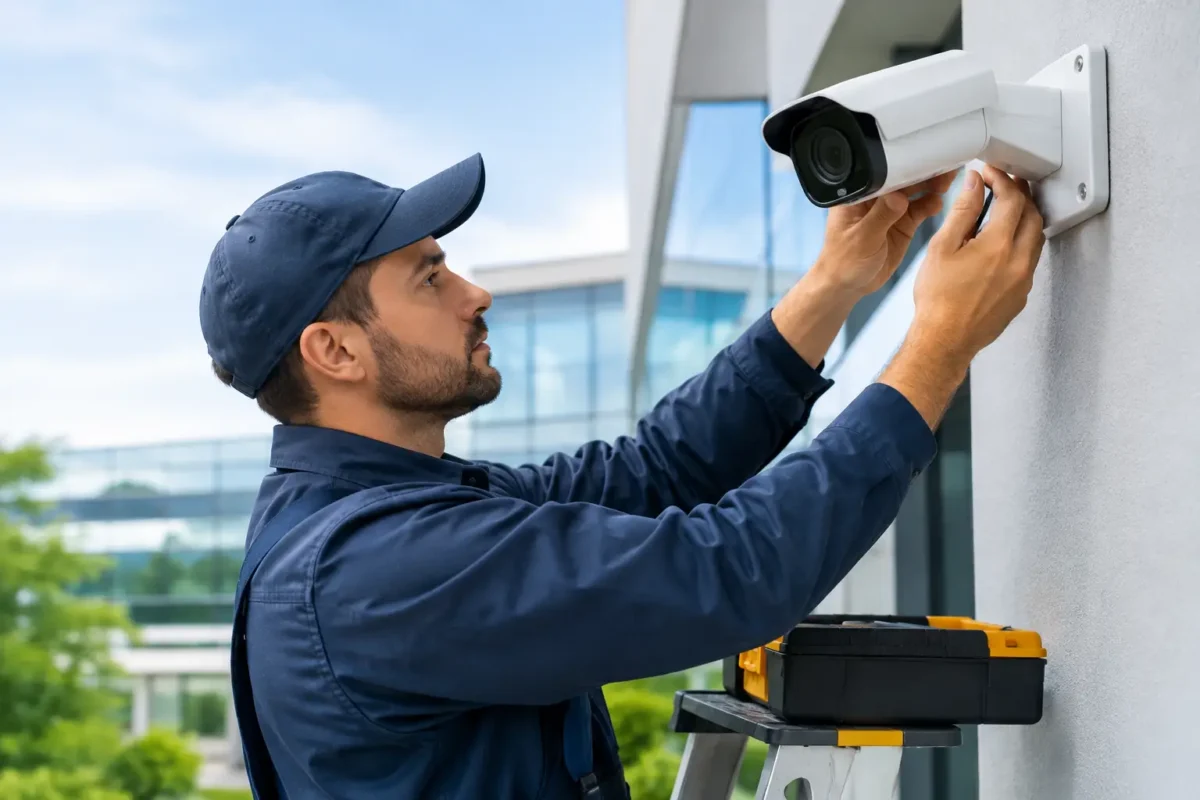
Monthly inspections should include a physical walk-through. Clean camera lenses and housings using manufacturer-approved materials. Dust, spiderwebs, rain spots, salt residue, and pollen can reduce image quality, trigger false motion events, and weaken infrared performance.
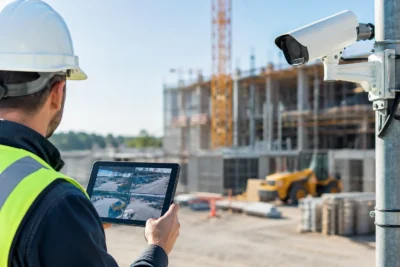
Inspect mounts, junction boxes, conduit, cable runs, and weather seals. Outdoor cameras should be firmly positioned with no cracked housing, loose hardware, water intrusion, or exposed wiring. For construction and job-site cameras, pay close attention to vibration, dust, temporary power, and changing sightlines.
At the recorder and network cabinet, make sure vents are clear and equipment is not overheating. Confirm surge protection and uninterruptible power supply status where installed. A recorder placed in a hot, dusty closet may fail sooner even if the cameras themselves appear normal.
Quarterly checks: test the system as if an incident occurred
Every quarter, test the complete evidence path. Select several cameras and export a short video clip. Verify that the exported file plays on an authorized device, includes the expected date and time, and can be located by staff who may need it after an event.
Test remote access from an approved connection, confirm notification rules, and review user accounts. Remove access for former employees, contractors, or vendors who no longer need it. Use unique credentials and avoid shared administrator passwords, particularly at multi-site businesses.
Quarterly is also a good time to test PTZ presets, alarm inputs, audio where legally appropriate, door or gate triggers, and camera coverage after landscaping or tenant changes. A camera can be online while its most important preset points at a newly installed sign.
Annual checks: protect long-term reliability
Schedule a deeper annual review of recorder health, storage drives, firmware, licenses, network capacity, and camera coverage. Hard drives are wear items. They may operate normally until they do not, which is why warning notifications and health checks matter.
Firmware updates can improve stability and address security issues, but they should not be treated as a casual click. Back up configuration settings, confirm compatibility, schedule updates outside peak operating hours, and test cameras and recording after the change. If your system supports a maintenance agreement or professional service visit, annual review is the right time to use it.
Keep Image Quality Focused on the Threat
Maintenance is not only about cleaning hardware. It is about confirming that each camera captures the detail needed for its role. A wide-angle overview camera can show activity across a parking area, but it may not identify a face or plate from a distance. A camera at a register needs a different field of view than one protecting a loading dock.
Review framing whenever the environment changes. Trees grow, displays move, vehicles park in new patterns, and exterior lighting is replaced. At night, bright headlights and storefront lighting can affect exposure. Test the scene at the hours when theft, vandalism, or unauthorized access is most likely.
For license plate recognition, verify the camera angle, mounting height, lane coverage, lighting, and capture distance. For PTZ cameras, verify that presets return accurately and that operators know when manual control is appropriate. For AI camera analytics, review detection zones and object classifications so that alerts remain useful rather than becoming background noise.
Protect Recording, Storage, and Power
The recorder is the evidence center of the system. Check its date and time settings regularly, preferably with reliable time synchronization. Incorrect timestamps create confusion during investigations and can make it harder to match video with access logs, alarm events, or employee reports.
Storage needs should be recalculated when you add cameras, increase resolution, change frame rates, enable continuous recording, or extend retention requirements. More storage is not always the only answer. Recording schedules, motion settings, smart events, and codec choices can affect capacity, but changes should be made carefully so they do not reduce evidentiary value.
Power events deserve attention as well. After an outage, confirm that cameras rebooted, the recorder resumed recording, and remote access returned. A UPS can keep critical equipment running through short interruptions and provide a controlled shutdown during longer outages. It does not replace proper surge protection, grounded power, or an inspection of aging electrical components.
Treat the Network as Part of the Security System
A camera system depends on network performance. Congested switches, poor cable terminations, failing power-over-Ethernet ports, weak wireless links, and internet outages can all appear as camera problems. When video drops, freezes, or disconnects, diagnose the network path before replacing a camera.
Use business-grade switches and properly rated cabling, especially for outdoor runs and higher-power PTZ cameras. Keep security devices on a planned network segment when possible, document IP addresses, and restrict unnecessary remote exposure. Remote viewing is valuable for owners and managers, but it should be configured with secure access practices rather than convenience alone.
For sites using LTE or 5G connectivity, monitor data usage and signal consistency. Cellular connections can be an excellent fit for temporary sites and remote locations, but recording strategy and bandwidth need to match the available service.
Know When to Call for Service
Some problems are appropriate for a trained staff member to handle, such as cleaning a lens or reporting an obstructed view. Repeated offline cameras, water intrusion, recorder drive errors, unstable network performance, damaged cable runs, and poor nighttime identification should be escalated promptly.
Professional service is also the right choice when the issue involves ladder work, electrical risk, roof-mounted equipment, firmware recovery, or a redesign of coverage. The goal is not simply to restore an image. It is to ensure the system is designed and installed correctly for the risk you are trying to manage.
Tech Security USA can help property owners and businesses evaluate system health, correct coverage gaps, and plan maintenance around the equipment and operating conditions at their site. Keep a simple service record after every inspection or repair. The next time footage is needed, that discipline can be the difference between a security system that looked operational and one that delivered usable evidence.
Posted on GoogleTrustindex verifies that the original source of the review is Google. I visited the Tech Security USA orange to install security cameras for my home. I found it a very professional company, with high quality products that were made me impressed. I recommend it to anyone who are looking a professional security cameras company in onrange city of Orange County CA.Posted on GoogleTrustindex verifies that the original source of the review is Google. “Edit (this review is not “spam” which the owner claims it is and the story is absolutely real however it was about 2 years ago and if I wasn’t shy back then(9th grade) or I wish I had done/said something about my dad and I being taken advantage of as it was a scam (quoted at around $150 but after having to wait 3weeks instead of 3 days for the guy to charge us $300 for a cheap screen that no longer had a haptic button or working Touch ID along with many white pressure dots along the edges). Do not go here. If you look at most of their 5-star reviews, they are older than 7 years. I went here recently to fix my iPad Air (3rd gen). The problem was the screen's backlight wouldn't work, so it would just show a black image. The technician said he could get it done for around $150 and in 2-3 days he would call us (my dad and I). After a week of waiting, we decided to call but to no avail. We went to the place to check up on the work done, if any. We got there and the iPad was in the exact same spot as the day we left it there. The guy told us it would be ready in about 4 days, no later, and that he would call us. We never got the call, so we went back after about another 3 days of waiting for a call (2 weeks now). After waiting, we went back to the store for the iPad, and it appeared to us as if he had just gotten started by breaking the screen to replace it. After another week, we came back and he pulled it out from a drawer saying something along the lines of, "I was about to call you guys." The screen was working, but it was clearly a cheap screen that was ordered online, and the Touch ID didn’t work anymore. The button was replaced with a non-haptic one. There are many white dots along the edges of the screen that look as if someone pressed their thumb down too hard for too long. The guy said with all the "extra" work done to it, the new total would be $300. When my dad and I looked at each other, we knew that wasn’t right, but I watched my dad grab his wallet and pay. I wish I had said something because we were taken advantage of, and after a week, the iPad's screen isn’t functioning properly as it feels unresponsive.Posted on GoogleTrustindex verifies that the original source of the review is Google. Will somebody please tell the owner to stop responding? She’s only validating the bad reviews.Posted on GoogleTrustindex verifies that the original source of the review is Google. Little messy inside but brought an old Moto Z2 Play in to finalize my failed battery self install. Done when promised, phone looked as good as new and works fine. I'm happy.Posted on GoogleTrustindex verifies that the original source of the review is Google. Garbage screen quality do not come here the screen is more different then a regular apple screen they use low quality screens the whole screen shattered and has black lines throughout it after a tiny drop with a screen protector.Posted on GoogleTrustindex verifies that the original source of the review is Google. I needed a battery replacement for my Huawei p10, the engineer fixed it in a few days (he had to order the battery) and it was reasonable priced, very good, thank youPosted on GoogleTrustindex verifies that the original source of the review is Google. Great location and employees. Really came through when I needed help. Recommend this place to anyone.Posted on GoogleTrustindex verifies that the original source of the review is Google. My go to place for any laptop and iPhone repairs. Also very friendly and experienced guy James.
Resent Posts
Surveillance System Maintenance Guide for Uptime
19 October 2026
How to Improve Alarm Response at Your Property
17 October 2026
Table of Contents