
Security System Training Guide for Your Team
[yasr_overall_rating]
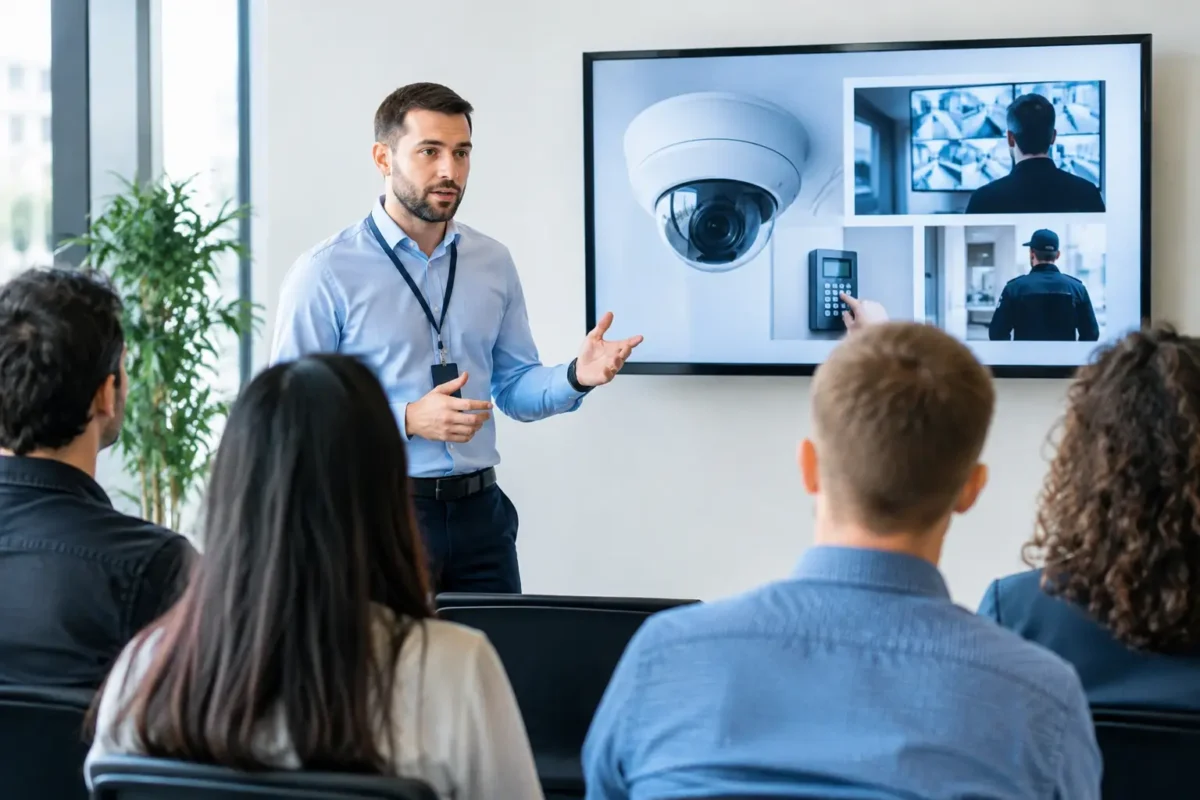
A camera system is only useful when the people responsible for it know what they are seeing, what to save, and what to do next. This security system training guide is built for property owners, managers, and staff who need cameras, alarms, and related security equipment to support real operations – not sit untouched until an incident occurs.
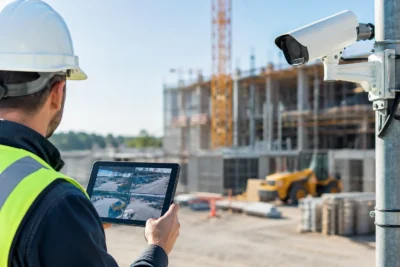
For a daycare, that may mean quickly finding video tied to a pickup concern. For a smoke shop or jewelry store, it may mean responding correctly to an alarm and preserving clear evidence after a theft. For a construction site, it may mean confirming that job-site cameras, cellular routers, and recording equipment are online before the weekend. Training should reflect those daily realities.
Start With the System’s Purpose
Before anyone learns a login screen or camera control, define what the system is expected to do. Security training fails when employees are told to “watch the cameras” without clear responsibilities, escalation steps, or access limits.
A business-grade system may include fixed cameras at entrances and registers, PTZ cameras for active monitoring, license plate recognition cameras at vehicle access points, intrusion alarms, fire and life safety devices, and a network video recorder. Each component has a different job. Staff do not need to become installers, but they do need to understand the role of the equipment they use.
For example, a front desk employee may only need live-view access and the ability to export an incident clip. A facility manager may need administrator access to review storage status, add users, and coordinate service. A site owner should know how to confirm the system is recording and who to call when it is not. Give each person the training that matches their role rather than giving every employee unrestricted access.
Build Training Around Real Incidents
The fastest way to make training stick is to use the situations your team actually faces. A generic walkthrough of camera menus rarely prepares someone to handle a shoplifting event, a damaged gate, an after-hours alarm, or a customer dispute.
Walk staff through an incident from beginning to end. Show them how to locate the relevant camera, select the correct date and time, review footage at normal and slow speed, and export the needed video without overwriting the original file. Explain where exported video is stored and who may share it with law enforcement, insurers, parents, customers, or outside parties.
Use practical examples that fit your property. A parking facility should practice finding a vehicle by time window, lane, and plate capture. A daycare should establish who reviews footage and how privacy is protected. A retail store should train closing staff on arming procedures and managers on reviewing alarm events the next morning.
The goal is not to make every employee a security expert. The goal is to reduce hesitation when minutes matter.
Security System Training Guide: The Core Skills
Every authorized user should be comfortable with the same operating basics. Teach these skills in person when possible, using the actual cameras, recorder, mobile app, alarm keypad, and network equipment installed at the site.
Confirm the system is working
Staff should know how to check whether cameras are online, whether the recorder has sufficient storage, and whether the correct date and time are displayed. A live camera image does not always confirm that video is being recorded. Train managers to verify recording status and recognize common warning signs, such as an offline channel, a hard-drive alert, a camera image with no playback, or repeated network disconnects.
This check should become part of a regular opening or weekly facility routine. For locations with higher risk, including jewelry stores, construction sites, and properties with after-hours access, more frequent checks are justified.
Find and preserve footage
Playback and export are the most valuable skills in a camera system. Staff need to know which camera covers each critical area, including entrances, cash handling locations, loading areas, parking lanes, and restricted doors.
Train users to begin with a specific time range, then narrow their search. Reviewing hours of footage is slow and creates mistakes. If an event occurred near a register at 3:15 p.m., users should start with that camera and a small time window, then expand only if needed.
Preservation matters as much as retrieval. Do not allow staff to edit the original recording. Export the relevant segment, document the date, time, camera name, and reason for the export, and store it according to company policy. If police or an insurer requests video, the owner or designated manager should control the release process.
Use alarm and access procedures correctly
An intrusion alarm is not simply an on-off switch. Employees need to know when to arm the site, which doors and zones must be secured first, how to avoid false alarms, and what to do if they make a mistake. They should never share alarm codes casually or leave codes written near a keypad.
If your site uses access control, train staff to report lost credentials immediately. Former employees, contractors, and temporary workers should be removed promptly. Access permissions should reflect job responsibilities, especially for offices, inventory rooms, medication storage, server closets, and cash-handling areas.
Know the response chain
A camera alert, alarm signal, or suspicious activity report should trigger a defined response. Employees should know whether to call a manager, monitoring center, security provider, or emergency services, and in what order. The right response depends on the event.
A person loitering near a storefront may require observation and documentation. A forced entry, fire alarm, or immediate threat requires emergency action. Train employees never to place themselves in danger to investigate an alert. Cameras provide information. They do not replace safe judgment or emergency response procedures.
Set Clear User Permissions
Too many systems are exposed because everyone has the same password or administrator access. Convenience creates a security gap when staff changes, devices are lost, or someone accidentally alters recording settings.
Create separate user accounts for managers, operators, and limited viewers. Remove access as soon as an employee leaves or changes roles. Require strong passwords and use multi-factor authentication where the platform supports it. If your team uses mobile viewing, establish who can install the app, which devices are approved, and what happens when a phone is replaced or lost.
For multi-site businesses, permissions should be organized by location. A manager at one site may need visibility into their own cameras but not every location in the company. This approach protects privacy and makes the system easier to manage.
Practice the Parts That Usually Go Wrong
Most security problems are operational, not equipment failures. A camera may be aimed correctly but blocked by seasonal signage. A recorder may be working, but storage retention may be shorter than the business assumes. An alarm may be installed properly, but a new employee may not understand the closing sequence.
Schedule short refresher sessions after staffing changes, system upgrades, renovations, or a security incident. Test a few practical tasks: find footage from yesterday, verify a camera is recording, arm and disarm according to policy, and report an offline device. These exercises reveal gaps before a real event exposes them.
It also helps to maintain a simple site reference sheet with camera locations, equipment locations, designated contacts, and escalation numbers. Keep sensitive credentials off that sheet. The purpose is to make operational information available without exposing the system.
When Professional Training Makes Sense
Self-training can work for a small home system with a few cameras. It becomes less practical when a property has multiple buildings, remote users, AI analytics, PTZ controls, license plate recognition, alarm integration, or network connectivity through LTE and 5G equipment.
Professional handoff training is especially valuable after a new installation. The installer can explain how the system was designed, which views are critical, how long footage is expected to retain, and how to get support when an issue appears. At Tech Security USA, the goal is to leave customers with equipment that is designed and installed correctly, plus a clear path for ongoing support when staff needs help.
A good training session should include the people who will actually operate the system, not only the person who approved the purchase. Ask the trainer to demonstrate daily use, playback, exports, user management, and basic health checks on your own equipment. If a task cannot be completed during training, it will be harder under pressure.
Make Training Part of Daily Security Operations
Security training is not a one-time handoff after installation. Treat it as part of opening, closing, incident reporting, staff onboarding, and regular facility maintenance. The system should be familiar enough that your team can use it calmly, without searching for instructions while an incident is unfolding.
Set aside time this month to test one real workflow on your property. Find a sample clip, confirm who can access it, and verify your team knows the next call to make. That small exercise can turn a collection of hardware into a dependable security operation.
Posted on GoogleTrustindex verifies that the original source of the review is Google. I visited the Tech Security USA orange to install security cameras for my home. I found it a very professional company, with high quality products that were made me impressed. I recommend it to anyone who are looking a professional security cameras company in onrange city of Orange County CA.Posted on GoogleTrustindex verifies that the original source of the review is Google. “Edit (this review is not “spam” which the owner claims it is and the story is absolutely real however it was about 2 years ago and if I wasn’t shy back then(9th grade) or I wish I had done/said something about my dad and I being taken advantage of as it was a scam (quoted at around $150 but after having to wait 3weeks instead of 3 days for the guy to charge us $300 for a cheap screen that no longer had a haptic button or working Touch ID along with many white pressure dots along the edges). Do not go here. If you look at most of their 5-star reviews, they are older than 7 years. I went here recently to fix my iPad Air (3rd gen). The problem was the screen's backlight wouldn't work, so it would just show a black image. The technician said he could get it done for around $150 and in 2-3 days he would call us (my dad and I). After a week of waiting, we decided to call but to no avail. We went to the place to check up on the work done, if any. We got there and the iPad was in the exact same spot as the day we left it there. The guy told us it would be ready in about 4 days, no later, and that he would call us. We never got the call, so we went back after about another 3 days of waiting for a call (2 weeks now). After waiting, we went back to the store for the iPad, and it appeared to us as if he had just gotten started by breaking the screen to replace it. After another week, we came back and he pulled it out from a drawer saying something along the lines of, "I was about to call you guys." The screen was working, but it was clearly a cheap screen that was ordered online, and the Touch ID didn’t work anymore. The button was replaced with a non-haptic one. There are many white dots along the edges of the screen that look as if someone pressed their thumb down too hard for too long. The guy said with all the "extra" work done to it, the new total would be $300. When my dad and I looked at each other, we knew that wasn’t right, but I watched my dad grab his wallet and pay. I wish I had said something because we were taken advantage of, and after a week, the iPad's screen isn’t functioning properly as it feels unresponsive.Posted on GoogleTrustindex verifies that the original source of the review is Google. Will somebody please tell the owner to stop responding? She’s only validating the bad reviews.Posted on GoogleTrustindex verifies that the original source of the review is Google. Little messy inside but brought an old Moto Z2 Play in to finalize my failed battery self install. Done when promised, phone looked as good as new and works fine. I'm happy.Posted on GoogleTrustindex verifies that the original source of the review is Google. Garbage screen quality do not come here the screen is more different then a regular apple screen they use low quality screens the whole screen shattered and has black lines throughout it after a tiny drop with a screen protector.Posted on GoogleTrustindex verifies that the original source of the review is Google. I needed a battery replacement for my Huawei p10, the engineer fixed it in a few days (he had to order the battery) and it was reasonable priced, very good, thank youPosted on GoogleTrustindex verifies that the original source of the review is Google. Great location and employees. Really came through when I needed help. Recommend this place to anyone.Posted on GoogleTrustindex verifies that the original source of the review is Google. My go to place for any laptop and iPhone repairs. Also very friendly and experienced guy James.
Resent Posts
Surveillance System Maintenance Guide for Uptime
19 October 2026
How to Improve Alarm Response at Your Property
17 October 2026
Table of Contents